Using the Resource Pack Creator
 |
| Time to get something done… |
When you finish your train model, there's no point in adding it into a resource pack and calling it a day, and expecting the game to magically understand your logic. It is not impossible to write up all the definitions and properties by yourself, but the complication will certainly make you feel overwhelmed. Resource Pack Creator is designed to allow you to create custom trains, boats, cable cars, and aeroplanes with a live preview, making the process of creating a resource pack easier for everyone.
Dependencies
A web browser, such as Google Chrome. In MTR4 Resource Pack Creator runs as a website hosted on your computer, so you will not find the Resource Pack Creator item in your Creative Mode Inventory.
Models and textures, if you're going to start from scratch.
A resource pack, if you're going to edit an existing resource pack.
Importing a resource pack
Make it your own!
- Resource Pack Creator
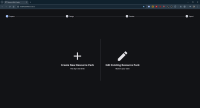
Click Edit Existing Resource Pack, and a window will show, prompting you to open a Zip file. And then it will bring you to the Design page, where you can start editing the resource pack. If your resource pack is in MTR3 format, the Resource Pack Creator will try and convert it to MTR4 format and export it in MTR4 format.
Create New Resource Pack
The sky's the limit!
- Resource Pack Creator
If you decide to create a new train from scratch, click Create New Resource Pack, and you'll be brought to the Design page. You can start designing your trains now.
Importing models
To import your models, click Manage Models, then Add Model. You can now upload your models. When you have finished selecting the files, press Open.
If you're importing OBJ files, you MUST also upload the corresponding MTL file. If you forget to do this, the model will not load.
Press Close to leave the model manager.
Importing textures
Similarly, click Manage Textures, then Add Textures. You can now upload your textures. When you have finished selecting the files, press Open.
Vehicle Properties
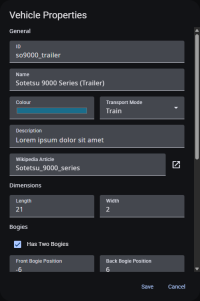 |
| The Vehicle Properties of a train. |
Before we start adding models, let's take a look at what you can customise in the Vehicle Properties Menu. Click Edit Vehicle Properties and the menu will be shown.
What do the options do?
| Name | Data type | Explanation | Condition | Default value |
| ID | string | The unique ID for each vehicle. | N/A | my_vehicle |
| Name | string | The name for your vehicle. | N/A | My Custom Vehicle |
| Colour | hex | The hex colour code for the little square appearing next to the train name in the vehicle selection screen. | N/A | (Random) |
| Description | string | Description that appears to the left of the vehicle selection screen when you hover your mouse over it. | N/A | This is my custom vehicle! |
| Wikipedia Article | string | A link to a Wikipedia Article related to that train.1) | N/A | N/A |
| Length | float | The length of your vehicle. Must be a positive number bigger than 0.5. | N/A | 25 |
| Width | float | The width of your vehicle. Must be a positive number bigger than 0.5. | N/A | 2 |
| Has Two Bogies | boolean | If TRUE, 2 bogies can be rendered on this vehicle. | N/A | TRUE |
| Front Bogie Position | float | Position for the bogie model (s) to be rendered. Calculated in metres from the centre of the train. | Has Two Bogies = TRUE | -8.5 |
| Back Bogie Position / Bogie Position | N/A | 8.5 |
| Front Coupling Padding | float | Padding to be added to the front/end of the vehicle. Calculated in metres. Must be a positive number or 0. | N/A | 0 |
| Back Coupling Padding | N/A | 0 |
| Has Front Gangway | boolean | If TRUE, players can walk through to the previous/next carriage. If the previous/next carriage is non-existent, or doesn't have a back /front gangway, the player will force dismount from the train. | N/A | FALSE |
| Has Back Gangway | boolean | N/A | FALSE |
| Has Front Barrier | boolean | If TRUE, a train barrier will be rendered between this and the next carriage. | N/A | FALSE |
| Has Back Barrier | boolean | N/A | FALSE |
| Sound | radio | Determines the type of sound the train will use. | N/A | BVE Format |
| BVE Sound ID | string | The ID for the BVE Sound. | Sound = BVE Format | a_train |
| Motor Sound ID | string | The ID for the motor sound. | Sound = Legacy Format | (empty) |
| Door Sound ID | string | The ID for the door sound. | Sound = Legacy Format | (empty) |
| Motor Sound Count | int | The number of sound files that should be played for motor sound. | Sound = Legacy Format | 0 |
| Door Close Sound Duration | float | The “offset” for the door close sound, i.e. when it should play during the door close sequence. | Sound = Legacy Format | 0 |
| Use Acceleration Sounds When Coasting | boolean | If TRUE, the game will always play motor sound from the acceleration soundset, instead of randomly playing acceleration and deceleration noise. | Sound = Legacy Format | FALSE |
| Constant Playback Speed | boolean | If TRUE, the game will always play the motor sound without repeating or skipping any intermediate motor sound files. | Sound = Legacy Format | FALSE |
| Test Motor sound | slider | An option to test your motor sound. The game must not be paused while testing the sound. | Sound = BVE Format | N/A |
| Test Door Open sound | button | An option to test your door's opening sound. The game must not be paused while testing the sound. | Sound = BVE Format | N/A |
| Test Door Close sound | button | An option to test your door's closing sound. The game must not be paused while testing the sound. | Sound = BVE Format | N/A |
By setting all these up, you're ready to add your models in.
Adding models
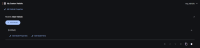 |
| A new model without specifying a model and a texture. |
| |
| A new model with a model and a texture specified. |
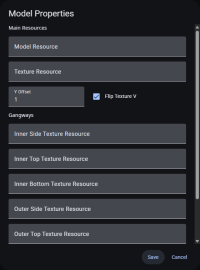 |
Model Properties menu when Has Front
Gangway or Has Back Gangway is enabled. |
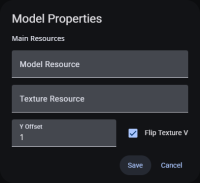 |
Model Properties menu when Has Front
Gangway or Has Back Gangway is disabled. |
Your model and textures can be put into the following groups:
Main Vehicle: All your normal parts should go here.
Front/Back/Bogie: All parts for bogie(s) should go here.
We will start by adding the main vehicle models. Click Main Vehicle and press Add model. A model named (Untitled) will be added to the list.
Model Properties
| Name | Data type | Explanation | Condition | Default value |
| Model Resource | string | The path to your model resource for this model. | N/A | N/A |
| Texture Resource | string | The path to your texture resource for this model.2) | N/A | N/A |
| Y Offset | float | Offset of your model from the ground. This value can be a negative number. | N/A | 1 |
| Flip Y | boolean | When FALSE, the texture will be flipped. This only applies to OBJ models. | N/A | TRUE |
| Gangway: (Inner/Outer) (Bottom/Side/Top) Texture Resource | string | Texture resource of that specific side of the gangway.
Inner means interior, Outer means exterior. | Has Front Gangway or Has Back Gangway is TRUE | N/A |
| Gangway: Width | float | The width of the gangway. | 1.5 |
| Gangway: Height | float | The height of the gangway. | 2.25 |
| Gangway: Y Offset | float | Offset of your gangway from the ground. This value can be a negative number. | 1 |
| Gangway: Z Offset | float | The length of the gangway. Calculated by input*2. If set to 1, the gangway will be 2 metres in length. | 0.5 |
| Barriers: (Inner/Outer) (Bottom/Side/Top) Texture Resource | string | Texture resource of that specific side of the barriers.
Inner means interior, Outer means exterior. | Has Front Barrier or Has Back Barrier is TRUE | N/A |
| Barriers: Width | float | The width of the gangway. | 1.5 |
| Barriers: Height | float | The height of the gangway. | 2.25 |
| Barriers: Y Offset | float | Offset of your gangway from the ground. This value can be a negative number. | 1 |
| Barriers: Z Offset | float | The length of the gangway. Calculated by input*2. If set to 1, the gangway will be 2 metres in length. | 0.5 |
Edit Model Parts
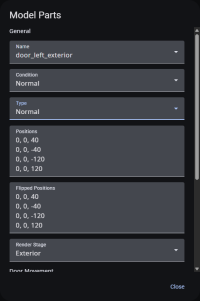 |
| Here you can define how your part behaves. |
Here's where the main thing about building the train goes. Click Edit Model Parts and you'll see a window with all the parts you've defined, of which it should be empty when you enter the window for the first time. Press Add to add new parts to the model.
You will not be able to edit model parts if you select a model with associated JSON files in Model Properties (e.g. `sp1900.bbmodel + sp1900_common.json + sp1900.json`)
| Name | Data type | Explanation | Condition | Default value | value(s) |
| Name | enum | The name of the part you want to render. | N/A | N/A | 3) |
| Condition | enum | The rendering condition of the part (see value(s)) | N/A | Normal | 4) |
| Type | enum | The role of this part in the vehicle (see value(s)) | N/A | Normal | 5) |
| Positions | string | Positions of that part to be rendered. The format should be x,y,z. Hit Enter for another position to render the part at. | N/A | N/A | N/A |
| Flipped Positions | string | Same as above, except the part will be flipped. | N/A | N/A | N/A |
| Render Stage | enum | How the part will act in the vehicle in terms of lighting (see value(s)) | N/A | N/A | 6) |
| Door X Multiplier | float | How many pixel units7) should the part move in the X axis (i.e. only work for plug doors) | N/A | 0 | N/A |
| Door Z Multiplier | float | How many pixel units8) should the part move in the Z axis | N/A | 0 | N/A |
Display Options
These values will appear if Type is Display.
| Name | Data type | Explanation | Condition | Default value | value(s) |
| Type | enum | Type of the display. | N/A | Destination | 9) |
| Default Text | string | Text to display when not running on a route, or at a depot. | Type is not Route Colour (Square) or Route Colour (Circle) | Not In Service | N/A |
| X Padding | float | Padding to be applied to the left and right sides of the display. If a positive number is applied, the display squeezes inwards. if a negative number is applied, the display stretches outwards. Works similarly to the CSS padding. | 0 | N/A |
| Y Padding | float | Padding to be applied to the top and bottom of the display. If a positive number is applied, the display squeezes inwards. if a negative number is applied, the display stretches outwards. Works similarly to the CSS padding. | 0 | N/A |
| Colour (CJK Text) | hex | The hex colour code for all CJK text. | FF9900 | N/A |
| Colour (Non-CJK Text) | hex | The hex colour code for all non-CJK text. | FF9900 | N/A |
| Max Line Height | float | The maximum height of the display. This means that the size of the text for all languages is to be shrunk. Cannot be a negative number. | 1.5 | N/A |
| CJK Size Ratio | float | The size ratio of CJK text when rendered with non-CJK text. The bigger the number, the smaller the Non-CJK text will render. Cannot be a negative number. | 2 | N/A |
| Pad Zeros | int | Make so that the departure index is an x-digit number by padding with zeros. x=the number entered. Cannot be a negative number. | Type is Departure Index | 0 | N/A |
| Single Line | boolean | If TRUE, regardless of whether pipe (|) is present, the display will be rendered in a single line. If the display content includes CJK characters, then the display will render in CJK characters' colour. | Type is not Route Colour (Square) or Route Colour (Circle) | FALSE | N/A |
| Convert to Upper Case | boolean | If TRUE, all non-CJK characters with upper case available (Latin, Cyrillic, etc.) will be automatically converted to upper case. |
| Put Space for Short CJK Text | boolean | If TRUE, any CJK string with 2 characters will automatically have a small space applied. |
| Scroll (Normal) | boolean | If TRUE, the display will become a scrolling display, with a pixel effect applied. |
| Scroll (Light Rail) | boolean | If TRUE, the display will become a scrolling display in Hong Kong Light Rail style, with a pixel effect applied. |
| Seven Segment (If Numeric) | boolean | If TRUE and the string contains numbers, the numbers will be rendered in a seven-segment font. Normal text, including the decimal point (.) will not render. |
| Align Left (CJK Text) | boolean | If TRUE, CJK characters will be rendered to the left side of the display. |
| Align Right (CJK Text) | boolean | If TRUE, CJK characters will be rendered to the right side of the display. |
| Align Left (Non-CJK Text) | boolean | If TRUE, non-CJK characters will be rendered to the left side of the display. |
| Align Right (Non-CJK Text) | boolean | If TRUE, non-CJK characters will be rendered to the right side of the display. |
| Align Top | boolean | If TRUE, the display will align to the top of the display. |
| Align Bottom | boolean | If TRUE, the display will align to the bottom of the display. |
| Cycle Languages | boolean | If TRUE, languages (separated by the pipe (|)) will be cycled. |
Door options
Door options will show when either Door X Multiplier or Door Z Multiplier are not 0.
| Name | Data type | Explanation | Default value |
| Door Animation Type | enum | The door animation that the part will use when doors are opening or closing. (See below for all animation types) | Standard |
| From Opening Time | float | When should the part start rendering when the doors are opening. Calculated in milliseconds (ms). | 0 |
| Until Opening Time | float | When should the part stop rendering when the doors are opening. Calculated in milliseconds (ms). | 0 |
| From Closing Time | float | When should the part start rendering when the doors are closing. Calculated in milliseconds (ms). | 0 |
| Until Closing Time | float | When should the part stop rendering when the doors are closing. Calculated in milliseconds (ms). | 0 |
| Flash On Time | float | If the part is a flashing display, how long should each flash stay in the on condition. Calculated in milliseconds (ms). | 0 |
| Flash Off Time | float | If the part is a flashing display, how long should each flash stay in the off condition. Calculated in milliseconds (ms). | 0 |
Door Animations
Custom door animations are not supported, and users must select a door animation from the following presets.
| Name | Example of usage |
| Standard | SP1900, C1141A, etc. |
| Standard (Slow) | LRV Phase 4 |
| Constant | N/A |
| Plug Fast | CAF Train, Class 377, etc. |
| Plug Slow (1) | Minecart, K-train, etc. |
| Plug Slow (2) | S700 |
| Plug Slow (3) | N/A |
| Bouncy (1) | M-Train, E44, etc. |
| Bouncy (2) | LRV Phase 1 |
| MLR | MLR |
| R179 | R179 |
| R211 | R211 |
However, users can still create custom door animations using Rendering Time, rather than the built-in animations.
Model Part List
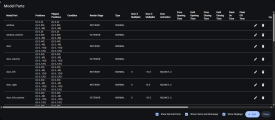 |
| A populated model part list. |
When you click Close in the Edit model part window, you'll go back to the Model Part List, where all the parts in that Model will show. There are two buttons to the right of each part: Edit (a pen icon), where you can edit that part, and delete (the rubbish bin icon), where you can remove that part.
List options
| Option | Description |
| Show Normal Parts | If set to FALSE, parts with the type Normal will be hidden. |
| Show Floorways and Doorways | If set to FALSE, parts with types Floor and Doorway will be hidden. |
| Show Displays | If set to FALSE, parts with the type Display will be hidden. |
Repeat adding parts until all parts for that vehicle are added, including the bogies.
Preview
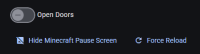 |
Some tools that would come in handy
when you're testing the vehicle out. |
In the Preview phase, there are a few tools that you can use when previewing the train.
| Name | Function |
| Open doors | When turned on, all doors in the client side will be forced to open. |
| Hide Minecraft Pause Screen | If the player is opening any kind of menu (e.g. inventory, chat, Game Menu), the UI will be hidden until the player clicks anywhere on the screen or presses Esc. |
| Force Reload | Force the game to reload all models and textures. |
Export
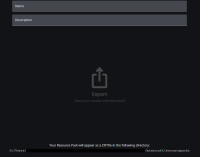 |
| Share your creation to the world! |
When you're happy with your creation and ready for export, go to Export. Enter a name and a description, and your resource pack will be saved in the directory shown at the bottom of the screen. Your file explorer will also open, showing where the resource pack is saved.


