====== Dashboards ======
| @#00C42A: **Dashboards** ||
| {{ :mtr:railway_dashboard.png?100 }} | {{ :mtr:boat_dashboard.png?100 }} |
| Icons of Railway and Boat Dashboard. ||
| {{ :mtr:cable_car_dashboard.png?100 }} | {{ :mtr:airplane_dashboard.png?100 }} |
| Icons of Cable Car and Flight Dashboard. ||
| **[[https://minecraft.wiki/w/Rarity|Rarity colour]]** | Common |
| **[[https://minecraft.wiki/w/Renewable_resource|Renewable]]** | Yes |
| **Stackable** | No |
| **Created by** | %%Jonathan%% |
The **Railway Dashboard,** **Boat Dashboard**, **Cable Car Dashboard**, and **Flight Dashboard** are required to set up stations and routes in the world.
===== Obtaining =====
==== Crafting ====
Barring the Flight Dashboard, all dashboards are obtainable via [[https://minecraft.wiki/w/Crafting|Crafting]].
| Name | Ingredients | [Crafting](https://minecraft.wiki/w/Crafting) Recipe |
| --- | --- | --- |
| Railway Dashboard | [Iron Ingot](https://minecraft.wiki/w/Iron_Ingot) + [Redstone Dust](https://minecraft.wiki/w/Redstone_Dust) + [Glass Pane](https://minecraft.wiki/w/Glass_Pane) + [Glowstone Dust](https://minecraft.wiki/w/Glowstone_Dust)
_Shaped Recipe_ |  |
| Boat Dashboard | [Planks](https://minecraft.wiki/w/Planks) + [Redstone Dust](https://minecraft.wiki/w/Redstone_Dust) + [Glass Pane](https://minecraft.wiki/w/Glass_Pane) + [Glowstone Dust](https://minecraft.wiki/w/Glowstone_Dust)
|
| Boat Dashboard | [Planks](https://minecraft.wiki/w/Planks) + [Redstone Dust](https://minecraft.wiki/w/Redstone_Dust) + [Glass Pane](https://minecraft.wiki/w/Glass_Pane) + [Glowstone Dust](https://minecraft.wiki/w/Glowstone_Dust)
_Shaped Recipe_ | 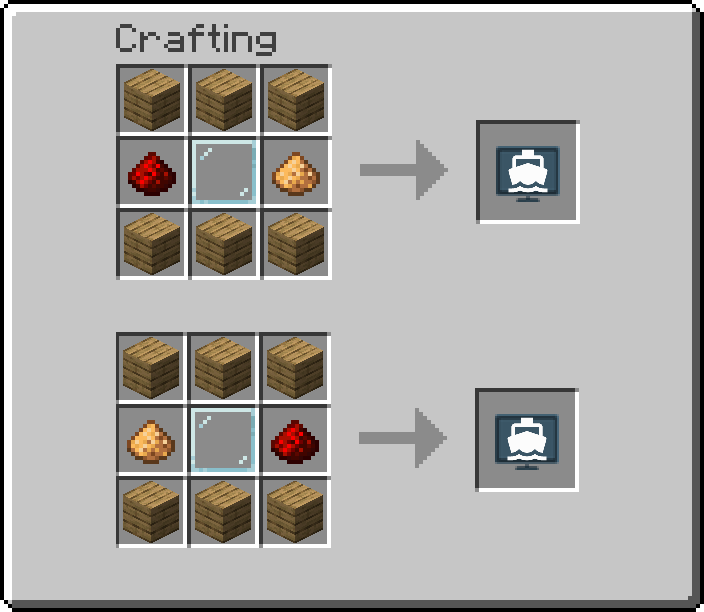 |
| Cable Car Dashboard | [String](https://minecraft.wiki/w/String) + [Redstone Dust](https://minecraft.wiki/w/Redstone_Dust) + [Glass Pane](https://minecraft.wiki/w/Glass_Pane) + [Glowstone Dust](https://minecraft.wiki/w/Glowstone_Dust)
|
| Cable Car Dashboard | [String](https://minecraft.wiki/w/String) + [Redstone Dust](https://minecraft.wiki/w/Redstone_Dust) + [Glass Pane](https://minecraft.wiki/w/Glass_Pane) + [Glowstone Dust](https://minecraft.wiki/w/Glowstone_Dust)
_Shaped Recipe_ | 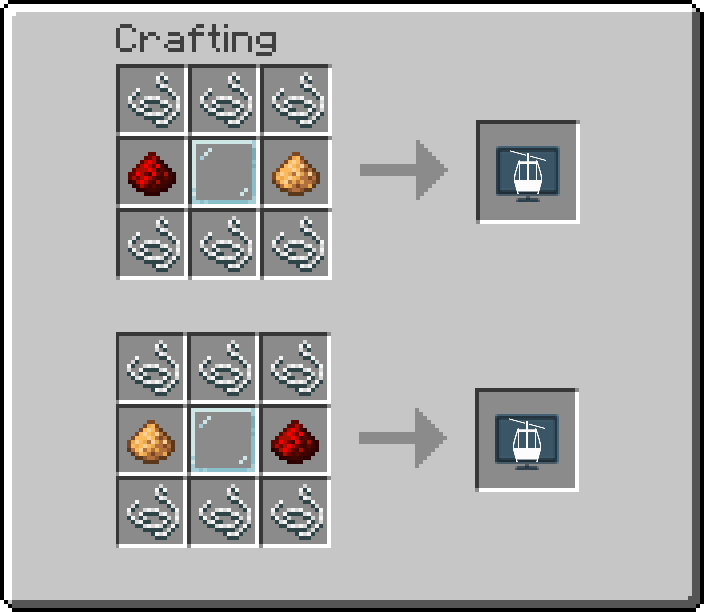 |
===== Usage =====
Dashboards are opened via a right-click (i.e. the use item/place block button).
==== Tabs ====
The Railway and Boat Dashboard has three tabs used to manage the railway.
| Tab | Functionality |
| --- | --- |
| Stations | Create a station with the `Add Station` buttonEdit a station's name, colour, or areaDelete a stationList platforms in a station and edit the dwell time and platform number for each listed platform |
| Routes | Create a route with the `Add Routes` buttonEdit a route's name or colourAdd a platform to an existing routeRemove a platform from an existing routeReorder platforms on a routeDelete a route |
| Depots | Create a depot with the `Add Depot` buttonEdit a depot's name, colour, or areaDelete a depotList sidings in a depot and edit the siding number or train type for each listed siding |
==== Station / Route / Depot Name Field ====
When ''Add Station'', ''Add Route'', or ''Add Depot'' is clicked or when a station, route, or siding is being edited, the "name" field text box will appear at the bottom. Use the ''|'' character to separate different languages, for example ''第一城|City One''.
If left blank, the station or route will default to "Untitled".
Stations can be created and shared across all dashboards, but platforms, routes, sidings, and depots are only created and visible within the dashboard of the transport type.
==== Station / Route / Depot Colour Field ====
When ''Add Station'' or ''Add Route'', or ''Add Depot'' is clicked or when a station, route, or siding is being edited, the "colour" field text box will appear at the bottom, next to the "name" field. This text box accepts a RGB six-character hex code, composed of numbers or the letters A-F. Use a [[https://www.w3schools.com/colors/colors_picker.asp|colour picker]] to easily generate a hex code.
If left blank, a random colour will be chosen.
==== Grouping Routes ====
Most of the time, a train line will have trains running in more than one direction. For example, a single line through a city will probably have trains running both outbound and inbound. In the game, an inbound and outbound route will have to be defined, creating two routes for a single line! Therefore, it is important to be able to group routes together.
When two or more routes share the same exact colour (same RGB hex code), they will be grouped together. On [[mtr:railway_sign]] and [[mtr:route_sign]], the routes will be grouped into only one line name.
Two pipe characters, ''||'', are used to add notes to the end of each route. The notes will not be shown in any signs; they will only appear in the dashboard.
It is recommended to have the same line name (before the ''||'') for routes that need to be grouped together. For example, two routes in the same group could be named ''東涌綫|Tung Chung Line||Westbound'' and ''東涌綫|Tung Chung Line||Eastbound''. If the line names are different, a random name will be chosen to be used on signs.
==== Using the Map ====
The map can be moved around by left-clicking + dragging the map, and can be zoomed in and out by using the mouse scroll or the + and - buttons provided.
==== Stations and Routes tab ====
When either the ''Stations'' or ''Routes'' tab is selected and while not editing a station or route, a platform on the map can be clicked on to bring up a platform configuration screen. The following properties for a platform can then be edited:
| Field | Description |
| --- | --- |
| Platform Number | Generally, platforms in a station are numbered to reduce confusion for passengers.Although uncommon in the real world, letters or even words can be used as the platform "number". |
| Dwell Time | This determines how long a train should stop at the platform.Generally, the value should be set to be low enough so that the next train would not arrive before the current train departs. |
| Route(s) at Platform | This shows what routes will use that platform. |
==== Depots tab ====
=== Siding configuration ===
When the ''Depots'' tab is selected and while not editing a depot, a siding on the map can be clicked on to bring up a siding configuration screen. The following properties for a siding can then be edited:
^ Field ^ Description ^ Default value ^
| Siding Number | Trains in a depot will be deployed according to the siding number.If two or more sidings share the same number, the train deployed will be randomly chosen from the siding selection. | 1 |
| Selected Vehicle | Vehicles that will be spawned in that siding. Click Edit to edit the formation. | N/A |
| Maximum Vehicles for Siding((
Not available for Cable Car Dashboard.
)) | Maximum number of formations of trains that can be spawned from that siding. | 1 |
| Vehicle Acceleration((
Not available for Cable Car Dashboard.
)) | Acceleration value for all formations of trains in this siding. | 4.0m/s² (14.4km/h/s) |
| Vehicle Deceleration((
Not available for Cable Car Dashboard.
)) | Deceleration value for all formations of trains in this siding. | 4.0m/s² (14.4km/h/s) |
| Increase Speed When Delayed((
Not available for Cable Car Dashboard.
)) | If the train is running behind schedule in ATO mode, the train will run at x% above the speed limit to try and running back on schedule. x=value set | 25% |
| Reduce Dwell Time When Delayed((
Not available for Cable Car Dashboard.
)) | If the train is running behind schedule in ATO mode, the train will reduce x% dwell time at each station to try and running back on schedule. x=value set | 100% |
| Wait at Platform When Early((
Not available for Cable Car Dashboard.
)) | If the train is running ahead of schedule in ATO mode, the train will stop at the station and wait until the expected departure time. | True |
| Drivable Vehicle((
Not available for Cable Car Dashboard.
)) | When turned on, the train will be able to operate manually by any player holding an appropriate Driver Key. | False |
| Maximum Drive Speed((
Not available for Cable Car Dashboard.
)) | Maximum speed that a train can reach in manual driving mode. | 300km/h |
| Drivable Timeout((
Not available for Cable Car Dashboard.
)) | When the ATO mode will kick in after any player on the train no longer hold an appropriate driver key. | 0 min 10.0 sec |
If the siding is set to be a drivable vehicle, the value for **Maximum Vehicles for Siding** must be 1.
== Selecting vehicles ==
By default, no vehicles are specified to spawn in a siding, even if it is within a siding. Players can press the + button to the right of each vehicle listed in the Available column to add a vehicle to spawn. Any vehicles that can't be spawned in that siding due to insufficient length will have a ⚠️ rendered before the name, and cannot be added to the Selected column.
In the Selected column, players can press Up / Down and Delete buttons buttons to the right of each vehicles to change the order of or remove vehicles from the list.
A "Duplicate Cars" option is available to allow players to duplicate the formation pattern.
=== Depot configuration ===
When the ''Depots'' tab is selected, and the user selects the Edit (pencil) button of a depot, the depot configuration screen is displayed. This is where the player can define the instructions for the depot, including the schedule and route(s).
^ Field ^ Description ^ Default value ^
| Schedule: Minecraft Time / Real Time | Schedule for when trains should depart from the depot. | Minecraft Time |
| 00:00-00:59 ~ 23:00-23:59 | Sliders for how many trains should depart from the depot per hour. | 0.0/hr |
| (Real time entering field) | Field for entering real-time schedule. The time should be entered in HH:MM:SS format. Adding +x*HH:MM:SS after the timestamp can add x more departures with a gap of the given time. | N/A |
| Depot name | Name of the depot. | Untitled |
| Depot Colour | Colour of the depot | Random HEX value |
| Edit instructions | Menu for editing instructions for all trains within the depot. | N/A |
| Instant Deploy | Button for deploying all trains to the route instantly. | N/A |
| Refresh Path | Button for refreshing the paths of the instructions. | N/A |
| Clear vehicles | Button for clearing all trains of that depot that are out of the depot. | N/A |
| Repeat Instructions Forever | When enabled, all trains will repeat the instructions forever, without returning to the depot. | False |
===== Changelog =====
3.0.0-Beta-2: Added Railway Dashboard.
%%3.0.0-Beta-5-unofficial-2: %%Railway Dashboard can now %%configure platform numbers and dwell times.%%
%%3.0.0-Beta-5-unofficial-8: %%Railway %%Dashboard lists are now separated into pages and include a search box.%%
%%3.0.0-Beta-5-prerelease: Mod configuration where custom fonts can be disabled is created and accessible from the dashboard.%%
%%3.0.0-Beta-6-unofficial-1: When two players edit the dashboard at once, there will no longer be conflicts or overwriting of data.%%
%%3.0.0-Beta-6-unofficial-2: Railway Dashboard can now configure the station's fare zone.%%
%%3.0.0-Beta-7-depot-snapshot: Depots tab is added in response of the depot update.%%
%%3.0.0-Beta-7-depot-snapshot: Train selection is now moved to depots tab.%%
%%3.0.0-Beta-7-depot-snapshot-2: The Railway Dashboard will return an error message to the player when pathfinding cannot find a complete route.%%
%%3.0.0-Beta-7-depot-snapshot-3: The Railway Dashboard can now set infinite train spawn in the train selection tab.%%
%%3.0.0-Beta-7-depot-snapshot-4: Fixed a bug where a siding without "unlimited trains" selected won't spawn any trains.%%
%%3.0.0-Beta-7-depot-snapshot-4-hotfix: Pathfinding feedback has been improved.%%
%%3.0.0-Beta-7-depot-snapshot-5: The Railway Dashboard can now set exits of a station.%%
%%3.0.0-Beta-8-unofficial-9: When searching for items in the Railway Dashboard, the search term will persist.%%
%%3.0.0-Beta-8-unofficial-9: The Railway Dashboard can now set a finite number of train can be spawned in one siding in the train selection tab.%%
%%3.0.0-Beta-9-unofficial-2: Added Boat Dashboard in response of the boat update.%%
%%3.0.0-Beta-9-unofficial-8: Fixed depot sliders resetting when editing train instructions.%%
%%3.0.0-Beta-9-unofficial-8: Serverside protection from adventure mode players editing the dashboard.%%
%%3.0.1-unofficial-1: Added Cable Car Dashboard in response of the cable car update.%%
%%3.1.0-unofficial-5: Real time scheduling can now be set in the Depot menu.%%
%%3.1.1: Overlapping station areas on the Dashboard will now be considered as connecting stations.%%
%%3.1.5: Customizable destination displays is now avaliable.%%
%%3.1.9: Data logging is experimentally logged in a CSV file.%%
%%3.1.10: Added Flight Dashboard in response of the airplane update.%%
%%3.1.11: Fixed Dashboards list mouse crash.%%
%%4.0.0-Beta-5: Various Dashboard tweaks.%%
%%4.0.0-Beta-5: Dashboard player Y-level view.%%
%%4.0.0-Beta-9: Various Dashboard tweaks.%%
%%4.0.0-Beta-11: Dashboard rendering improvements and added back the MTR Font toggle.%%
%%4.0.0-Beta-11: Dashboard can now be opened to the current station/depot or nearby platform/siding by shift-right-clicking.%%
%%4.0.0-Beta-13: Fixed Dashboard map text jittering.%%
%%4.0.0-Beta-13: Dashboard now lists routes in the platform configuration screen.%%
===== Gallery =====
{{:mtr:2025-11-13_21.53.46.png?300|The interface of Railway Dashboard when opened.}}\\ The interface of Railway Dashboard when opened.
{{:mtr:2025-11-13_21.53.50.png?300}}\\ The interface of platform configuration.
{{:mtr:2025-11-13_21.54.19.png?300}}
The interface of the siding configuration on all Dashboards except the Cable Car Dashboard.
{{2025-11-13_21.56.10.png?300}}
The interface of the siding configuration on the Cable Car Dashboard.
{{:mtr:2025-11-13_21.54.36.png?300}}
The interface of vehicle selection. Note that the player can no longer select any vehicles from the Available column, as it does not have enough space for any of them to fit the siding.
|
===== Usage =====
Dashboards are opened via a right-click (i.e. the use item/place block button).
==== Tabs ====
The Railway and Boat Dashboard has three tabs used to manage the railway.
| Tab | Functionality |
| --- | --- |
| Stations | Create a station with the `Add Station` buttonEdit a station's name, colour, or areaDelete a stationList platforms in a station and edit the dwell time and platform number for each listed platform |
| Routes | Create a route with the `Add Routes` buttonEdit a route's name or colourAdd a platform to an existing routeRemove a platform from an existing routeReorder platforms on a routeDelete a route |
| Depots | Create a depot with the `Add Depot` buttonEdit a depot's name, colour, or areaDelete a depotList sidings in a depot and edit the siding number or train type for each listed siding |
==== Station / Route / Depot Name Field ====
When ''Add Station'', ''Add Route'', or ''Add Depot'' is clicked or when a station, route, or siding is being edited, the "name" field text box will appear at the bottom. Use the ''|'' character to separate different languages, for example ''第一城|City One''.
If left blank, the station or route will default to "Untitled".
Stations can be created and shared across all dashboards, but platforms, routes, sidings, and depots are only created and visible within the dashboard of the transport type.
==== Station / Route / Depot Colour Field ====
When ''Add Station'' or ''Add Route'', or ''Add Depot'' is clicked or when a station, route, or siding is being edited, the "colour" field text box will appear at the bottom, next to the "name" field. This text box accepts a RGB six-character hex code, composed of numbers or the letters A-F. Use a [[https://www.w3schools.com/colors/colors_picker.asp|colour picker]] to easily generate a hex code.
If left blank, a random colour will be chosen.
==== Grouping Routes ====
Most of the time, a train line will have trains running in more than one direction. For example, a single line through a city will probably have trains running both outbound and inbound. In the game, an inbound and outbound route will have to be defined, creating two routes for a single line! Therefore, it is important to be able to group routes together.
When two or more routes share the same exact colour (same RGB hex code), they will be grouped together. On [[mtr:railway_sign]] and [[mtr:route_sign]], the routes will be grouped into only one line name.
Two pipe characters, ''||'', are used to add notes to the end of each route. The notes will not be shown in any signs; they will only appear in the dashboard.
It is recommended to have the same line name (before the ''||'') for routes that need to be grouped together. For example, two routes in the same group could be named ''東涌綫|Tung Chung Line||Westbound'' and ''東涌綫|Tung Chung Line||Eastbound''. If the line names are different, a random name will be chosen to be used on signs.
==== Using the Map ====
The map can be moved around by left-clicking + dragging the map, and can be zoomed in and out by using the mouse scroll or the + and - buttons provided.
==== Stations and Routes tab ====
When either the ''Stations'' or ''Routes'' tab is selected and while not editing a station or route, a platform on the map can be clicked on to bring up a platform configuration screen. The following properties for a platform can then be edited:
| Field | Description |
| --- | --- |
| Platform Number | Generally, platforms in a station are numbered to reduce confusion for passengers.Although uncommon in the real world, letters or even words can be used as the platform "number". |
| Dwell Time | This determines how long a train should stop at the platform.Generally, the value should be set to be low enough so that the next train would not arrive before the current train departs. |
| Route(s) at Platform | This shows what routes will use that platform. |
==== Depots tab ====
=== Siding configuration ===
When the ''Depots'' tab is selected and while not editing a depot, a siding on the map can be clicked on to bring up a siding configuration screen. The following properties for a siding can then be edited:
^ Field ^ Description ^ Default value ^
| Siding Number | Trains in a depot will be deployed according to the siding number.If two or more sidings share the same number, the train deployed will be randomly chosen from the siding selection. | 1 |
| Selected Vehicle | Vehicles that will be spawned in that siding. Click Edit to edit the formation. | N/A |
| Maximum Vehicles for Siding((
Not available for Cable Car Dashboard.
)) | Maximum number of formations of trains that can be spawned from that siding. | 1 |
| Vehicle Acceleration((
Not available for Cable Car Dashboard.
)) | Acceleration value for all formations of trains in this siding. | 4.0m/s² (14.4km/h/s) |
| Vehicle Deceleration((
Not available for Cable Car Dashboard.
)) | Deceleration value for all formations of trains in this siding. | 4.0m/s² (14.4km/h/s) |
| Increase Speed When Delayed((
Not available for Cable Car Dashboard.
)) | If the train is running behind schedule in ATO mode, the train will run at x% above the speed limit to try and running back on schedule. x=value set | 25% |
| Reduce Dwell Time When Delayed((
Not available for Cable Car Dashboard.
)) | If the train is running behind schedule in ATO mode, the train will reduce x% dwell time at each station to try and running back on schedule. x=value set | 100% |
| Wait at Platform When Early((
Not available for Cable Car Dashboard.
)) | If the train is running ahead of schedule in ATO mode, the train will stop at the station and wait until the expected departure time. | True |
| Drivable Vehicle((
Not available for Cable Car Dashboard.
)) | When turned on, the train will be able to operate manually by any player holding an appropriate Driver Key. | False |
| Maximum Drive Speed((
Not available for Cable Car Dashboard.
)) | Maximum speed that a train can reach in manual driving mode. | 300km/h |
| Drivable Timeout((
Not available for Cable Car Dashboard.
)) | When the ATO mode will kick in after any player on the train no longer hold an appropriate driver key. | 0 min 10.0 sec |
If the siding is set to be a drivable vehicle, the value for **Maximum Vehicles for Siding** must be 1.
== Selecting vehicles ==
By default, no vehicles are specified to spawn in a siding, even if it is within a siding. Players can press the + button to the right of each vehicle listed in the Available column to add a vehicle to spawn. Any vehicles that can't be spawned in that siding due to insufficient length will have a ⚠️ rendered before the name, and cannot be added to the Selected column.
In the Selected column, players can press Up / Down and Delete buttons buttons to the right of each vehicles to change the order of or remove vehicles from the list.
A "Duplicate Cars" option is available to allow players to duplicate the formation pattern.
=== Depot configuration ===
When the ''Depots'' tab is selected, and the user selects the Edit (pencil) button of a depot, the depot configuration screen is displayed. This is where the player can define the instructions for the depot, including the schedule and route(s).
^ Field ^ Description ^ Default value ^
| Schedule: Minecraft Time / Real Time | Schedule for when trains should depart from the depot. | Minecraft Time |
| 00:00-00:59 ~ 23:00-23:59 | Sliders for how many trains should depart from the depot per hour. | 0.0/hr |
| (Real time entering field) | Field for entering real-time schedule. The time should be entered in HH:MM:SS format. Adding +x*HH:MM:SS after the timestamp can add x more departures with a gap of the given time. | N/A |
| Depot name | Name of the depot. | Untitled |
| Depot Colour | Colour of the depot | Random HEX value |
| Edit instructions | Menu for editing instructions for all trains within the depot. | N/A |
| Instant Deploy | Button for deploying all trains to the route instantly. | N/A |
| Refresh Path | Button for refreshing the paths of the instructions. | N/A |
| Clear vehicles | Button for clearing all trains of that depot that are out of the depot. | N/A |
| Repeat Instructions Forever | When enabled, all trains will repeat the instructions forever, without returning to the depot. | False |
===== Changelog =====
3.0.0-Beta-2: Added Railway Dashboard.
%%3.0.0-Beta-5-unofficial-2: %%Railway Dashboard can now %%configure platform numbers and dwell times.%%
%%3.0.0-Beta-5-unofficial-8: %%Railway %%Dashboard lists are now separated into pages and include a search box.%%
%%3.0.0-Beta-5-prerelease: Mod configuration where custom fonts can be disabled is created and accessible from the dashboard.%%
%%3.0.0-Beta-6-unofficial-1: When two players edit the dashboard at once, there will no longer be conflicts or overwriting of data.%%
%%3.0.0-Beta-6-unofficial-2: Railway Dashboard can now configure the station's fare zone.%%
%%3.0.0-Beta-7-depot-snapshot: Depots tab is added in response of the depot update.%%
%%3.0.0-Beta-7-depot-snapshot: Train selection is now moved to depots tab.%%
%%3.0.0-Beta-7-depot-snapshot-2: The Railway Dashboard will return an error message to the player when pathfinding cannot find a complete route.%%
%%3.0.0-Beta-7-depot-snapshot-3: The Railway Dashboard can now set infinite train spawn in the train selection tab.%%
%%3.0.0-Beta-7-depot-snapshot-4: Fixed a bug where a siding without "unlimited trains" selected won't spawn any trains.%%
%%3.0.0-Beta-7-depot-snapshot-4-hotfix: Pathfinding feedback has been improved.%%
%%3.0.0-Beta-7-depot-snapshot-5: The Railway Dashboard can now set exits of a station.%%
%%3.0.0-Beta-8-unofficial-9: When searching for items in the Railway Dashboard, the search term will persist.%%
%%3.0.0-Beta-8-unofficial-9: The Railway Dashboard can now set a finite number of train can be spawned in one siding in the train selection tab.%%
%%3.0.0-Beta-9-unofficial-2: Added Boat Dashboard in response of the boat update.%%
%%3.0.0-Beta-9-unofficial-8: Fixed depot sliders resetting when editing train instructions.%%
%%3.0.0-Beta-9-unofficial-8: Serverside protection from adventure mode players editing the dashboard.%%
%%3.0.1-unofficial-1: Added Cable Car Dashboard in response of the cable car update.%%
%%3.1.0-unofficial-5: Real time scheduling can now be set in the Depot menu.%%
%%3.1.1: Overlapping station areas on the Dashboard will now be considered as connecting stations.%%
%%3.1.5: Customizable destination displays is now avaliable.%%
%%3.1.9: Data logging is experimentally logged in a CSV file.%%
%%3.1.10: Added Flight Dashboard in response of the airplane update.%%
%%3.1.11: Fixed Dashboards list mouse crash.%%
%%4.0.0-Beta-5: Various Dashboard tweaks.%%
%%4.0.0-Beta-5: Dashboard player Y-level view.%%
%%4.0.0-Beta-9: Various Dashboard tweaks.%%
%%4.0.0-Beta-11: Dashboard rendering improvements and added back the MTR Font toggle.%%
%%4.0.0-Beta-11: Dashboard can now be opened to the current station/depot or nearby platform/siding by shift-right-clicking.%%
%%4.0.0-Beta-13: Fixed Dashboard map text jittering.%%
%%4.0.0-Beta-13: Dashboard now lists routes in the platform configuration screen.%%
===== Gallery =====
{{:mtr:2025-11-13_21.53.46.png?300|The interface of Railway Dashboard when opened.}}\\ The interface of Railway Dashboard when opened.
{{:mtr:2025-11-13_21.53.50.png?300}}\\ The interface of platform configuration.
{{:mtr:2025-11-13_21.54.19.png?300}}
The interface of the siding configuration on all Dashboards except the Cable Car Dashboard.
{{2025-11-13_21.56.10.png?300}}
The interface of the siding configuration on the Cable Car Dashboard.
{{:mtr:2025-11-13_21.54.36.png?300}}
The interface of vehicle selection. Note that the player can no longer select any vehicles from the Available column, as it does not have enough space for any of them to fit the siding.